%2001%201.png)

Google Console Setup for SEO Beginners: From Account Creation to Ranking Wins
You know the feeling. Google Console exists, it's free, and everyone says it's essential for SEO. But when you log in for the first time, you're staring at dashboards and metrics wondering: Where do I even start? What does all this data actually mean? And most importantly, what am I supposed to do with it?
If you're a solo founder or small business owner running lean on your marketing team, this confusion is completely normal. Google Console setup takes less than 5 minutes, and once you understand what the metrics are telling you, the data becomes a roadmap for real SEO wins. Here's what sets this guide apart: we'll walk you through setup step-by-step, translate Console metrics into plain English, and most importantly, show you exactly how to extract competitive advantages from your data by connecting Console findings to keyword discovery and ranking strategy. By the end, you'll know not just how to use Google Console, but how to turn it into your foundation for consistent traffic growth.
Getting Started with Google Search Console Setup
Creating Your Google Search Console Account
Start by visiting Google Search Console at search.google.com/search-console. Sign in with the Google account you use for your business (or create one if you don't have one yet). Once logged in, you'll see an option to add a property. Click the plus icon next to Search Console and select Add property.
Choose the URL prefix option and enter your full website address exactly as it appears, including https:// if your site uses SSL. This takes about 30 seconds and requires no technical knowledge. You'll then move to the verification step, which confirms that you own the website before Google shares its search performance data with you. This is a standard security checkpoint all website owners complete.
Verifying Your Website Ownership
Verification is a standard security step that confirms you own the domain before Google shares its search data. It's straightforward and you only need to complete one verification method.
- DNS record: Add a DNS TXT record through your domain registrar (like GoDaddy or Namecheap). Google provides the exact text to add.
- HTML file upload: Download an HTML file from Google and upload it to your website's root directory via FTP or your hosting control panel.
- Google Tag Manager: If you already use Google Tag Manager on your site, this is the fastest method for verification.
- Meta tag: Add a specific meta tag to your website's header code.
Pick whichever method feels most comfortable. The DNS route is most reliable for long-term ownership verification. Once you've completed your chosen method, click Verify and Google will confirm ownership within seconds to a few minutes. After verification, you're officially set up and ready to monitor your search performance data.
Submitting Your XML Sitemap
A sitemap is a file that lists all the pages on your website. Think of it as a directory that tells Google exactly which pages to crawl and index. Most modern website platforms (WordPress, Webflow, Squarespace) automatically generate a sitemap for you.
To find your sitemap, add /sitemap.xml to the end of your domain name in your browser. For example, if your website is example.com, visit example.com/sitemap.xml. If a page loads with XML code, you've found it. Copy that URL and head back to Google Console. Under the left sidebar, select Sitemaps, then click Add a new sitemap. Paste your sitemap URL and click Submit. Google will now have a complete map of your site's structure and can crawl all your pages efficiently.
Struggling to prioritize which keywords to target from your Google Console data? RankRealizer identifies high-opportunity keywords from your existing traffic and automates keyword discovery to guide your SEO strategy.-
Understanding Your Google Console Data
Impressions and Clicks Explained
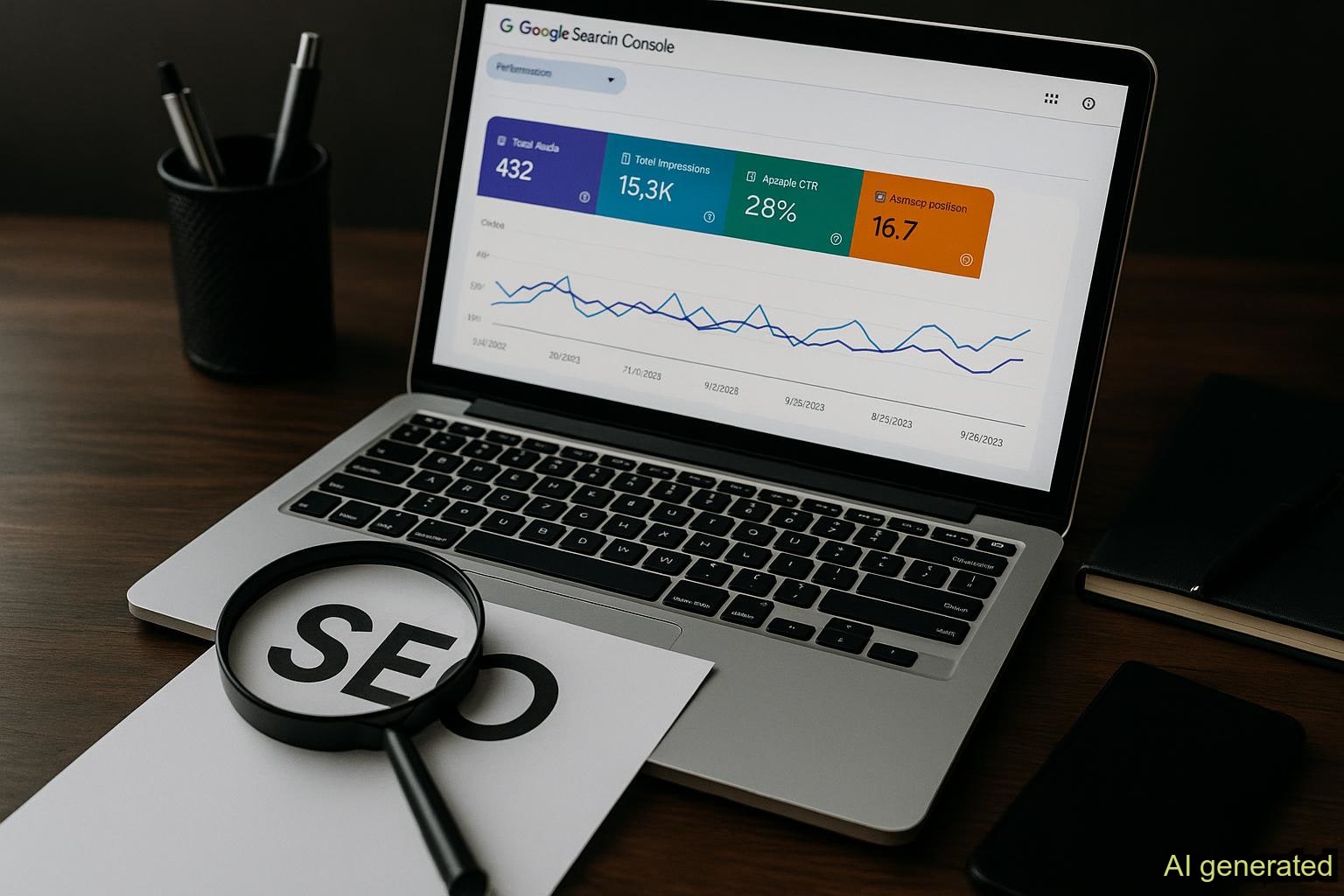
These two metrics form the foundation of all Console analysis. An impression is every time your website appears in Google search results. A click is when someone actually clicks through to visit your site. Think of impressions as your storefront visibility on the street, and clicks as foot traffic walking through your door.
High impressions with low clicks is actually valuable information. It means people are seeing your site in search results, but something about your title, meta description, or content snippet isn't compelling enough to click. This signals an immediate optimization opportunity: rewrite your titles and descriptions to be more compelling. Conversely, high clicks with low impressions means your content is compelling, but you're not ranking high enough to get visibility, which means you need to improve your content relevance or technical SEO.
Click-Through Rate (CTR) and Why It Matters
Click-Through Rate is the percentage of impressions that result in clicks. If your page got 100 impressions and 10 clicks, your CTR is 10%. This metric is directly actionable because it tells you whether your page titles and meta descriptions are compelling enough to earn clicks from people searching for your keywords.
Average CTR varies significantly by search position. A page ranking at position 1 typically gets a 30-40% CTR, while position 5 might get 5-10%. If your CTR is significantly lower than average for your position, it's time to rewrite your title and meta description. This is one of the quickest wins you can implement to improve search performance without changing any of your actual content.
Average Position and Search Visibility
Average position tells you where your pages typically rank for the keywords people are searching. Positions 1-3 are the traffic zone where the majority of clicks happen. There's a dramatic drop-off after position 10. If you're ranking at position 6, moving to position 4 might seem like a small improvement, but it can mean a 50-100% increase in traffic from those keywords.
This metric helps you prioritize strategically. Keywords where you're already ranking at positions 5-10 are often your best quick wins. You don't need to go from zero to hero. Small ranking improvements in the 5-10 range compound into real traffic gains much faster than trying to rank for keywords you're not appearing for at all. Your goal is to identify which of your positions 5-10 keywords will deliver the biggest traffic lift with focused optimization effort.
From Google Console Data to SEO Action
Using Console Data to Identify Keyword Opportunities
Most guides explain what Google Console metrics mean and stop there. Here's where you move to action. Go to the Performance report in Google Console and look for two specific patterns that signal quick wins:
- High impressions, low clicks: These keywords are showing your content, but your title or description isn't closing the deal. Rewriting these entries is a fast win with immediate payoff.
- Ranking positions 5-10: These keywords are close to the traffic zone. A small content improvement or technical fix could move you into positions 1-3 where most clicks happen.
Focus on these two patterns first. They represent your existing traffic momentum. You already have user interest and partial visibility. It takes less effort to improve from position 6 to position 3 than to rank a completely new keyword from zero. This is the secret to compounding SEO wins early.
Spotting Content Gaps and Setting Optimization Priorities
Your Google Console data also reveals what you're missing. Look for patterns like multiple pages ranking for similar keywords (called cannibalization), keywords with significant search volume that you don't appear for, or related keywords your competitors rank for that you don't capture.
Prioritize optimization in this order: First, fix existing content driving impressions but no clicks. Second, improve your positions 5-10 keywords. Third, address cannibalization by consolidating similar keywords onto one strong page. Only after these should you create entirely new content for keywords you don't rank for yet. This approach maximizes return on your effort and compounds your traffic gains.
Connecting Console Insights to Keyword Discovery Strategy
This is the crucial bridge most Google Console guides skip. Your Console shows which keywords are generating impressions, but it doesn't tell you about related high-opportunity keywords you could target or which competitor keywords you're missing. Here's how to extend your Console analysis into a winning keyword discovery strategy.
Once you've identified your priority keywords in Google Console, use those insights to guide your keyword discovery process. If Console shows you're ranking for 'best project management tools' but you're not capturing 'project management software for small teams,' that's a signal to explore related keyword variations. The keywords already showing in your Console with traffic potential tell you exactly what searchers are looking for in your niche. From there, you can expand strategically to capture the full opportunity.
RankRealizer automates this next step. Instead of manually researching related keywords, you input your Google Console priority keywords and instantly discover high-opportunity keyword variations, search volume, and ranking difficulty. This transforms Console data from a diagnostic tool into your strategic roadmap for content planning and sustained SEO growth. Console tells you what's working. Keyword discovery research tells you where to go next.
Quick Troubleshooting and Common Google Console Questions
Why is my Google Console data delayed? Google Console data lags by 2-3 days. If you set up your account today, you won't see traffic data until 3-4 days from now. This is normal and expected as Google processes query data.
I don't see any Google Console data yet. If it's been more than a week, make sure your sitemap was accepted and your site doesn't have any crawl errors blocking Google. Check the Coverage report in Console to verify your pages are being indexed.
What's the difference between Google Search Console and Google Analytics? Console shows you search visibility and the keywords driving traffic. Analytics shows you what users do after they arrive on your site. Both serve different purposes. Console is your SEO lens for understanding search performance, Analytics is your user behavior lens for understanding engagement. You benefit from having both.
Do I Need Google Analytics If I Have Google Console?
Not necessarily to start. Console is your foundational SEO tool for understanding search performance and keyword visibility. Analytics becomes valuable once you want to understand user behavior beyond search, such as where visitors go after landing, how long they stay, and what they click. For pure SEO beginners focused on improving search rankings, Google Console alone is enough to get moving and see results.
Can I Manage Google Console for Multiple Websites?
Yes. You can add multiple properties to your Console account and switch between them easily. Each property is managed separately, so metrics don't mix. This is useful if you manage SEO for multiple clients or run multiple businesses.
What If My Website Uses a Subdomain?
You need to add it as a separate property in Google Console. Console treats subdomains differently from the root domain, so tracking them separately ensures accurate data and separate visibility into their search performance.
How Often Should I Check My Google Console?
Weekly is a good rhythm for beginners monitoring their search performance. You're looking for trends, not daily fluctuations. Monthly reviews also work fine if you're managing multiple priorities alongside SEO.
Can Google Console Tell Me Why My Traffic Dropped?
Console can show you that traffic dropped, but identifying the reason usually requires investigation beyond what Console displays. Possible causes include Google algorithm updates, new competitors ranking above you, decreased search volume for your keywords, or technical issues. Console will alert you to crawl errors and indexing problems, but traffic shifts usually require deeper analysis and testing.
Next Steps and Conclusion
You've now moved from uncertainty to confidence. You know that Google Console setup is straightforward, that the metrics have clear meaning, and that your Console data is the foundation for strategic SEO decisions. You're no longer staring at dashboards wondering what to do. You have a framework: spot high-impression/low-click keywords, improve positions 5-10, fix cannibalization, then expand strategically using keyword discovery insights.
The next logical step is operationalizing these insights at scale. Now that you know which keywords matter from your Google Console, how do you systematically discover related high-opportunity keywords without spending 20 hours researching? How do you prioritize a keyword strategy that actually moves the needle and drives consistent traffic growth?
Ready to turn Google Console insights into ranking wins? Discover how RankRealizer automates keyword discovery from your Console data and identifies high-opportunity keywords you should target next. Start your free trial today and see how Console data feeds into a winning keyword strategy for your business.-


.png)