%2001%201.png)

How to Use Google Search Console for SEO Growth: A Step-by-Step Guide for Solo Founders
SEO can be a hassle, especially if you're a solo founder looking to automate your marketing processes but stuck at 'Where should I begin?' You know Google Search Console exists. You've read plenty of tutorials. You understand that analytics matter for tracking keyword rankings and measuring SEO performance. But here's the real challenge: you don't know how to connect these tools or turn the data into actual ranking improvements that move the needle.
The truth is, Search Console and analytics form a connected system that reveals exactly where your SEO opportunities live. Real data from your existing traffic shows you which keywords are close to ranking, which pages need minor tweaks, and where you can win without starting from scratch. This guide walks you through setup, metric interpretation, and actionable steps that turn your Search Console data into measurable ranking growth. You're at the right place.
Why Search Console and Analytics Matter for Your SEO
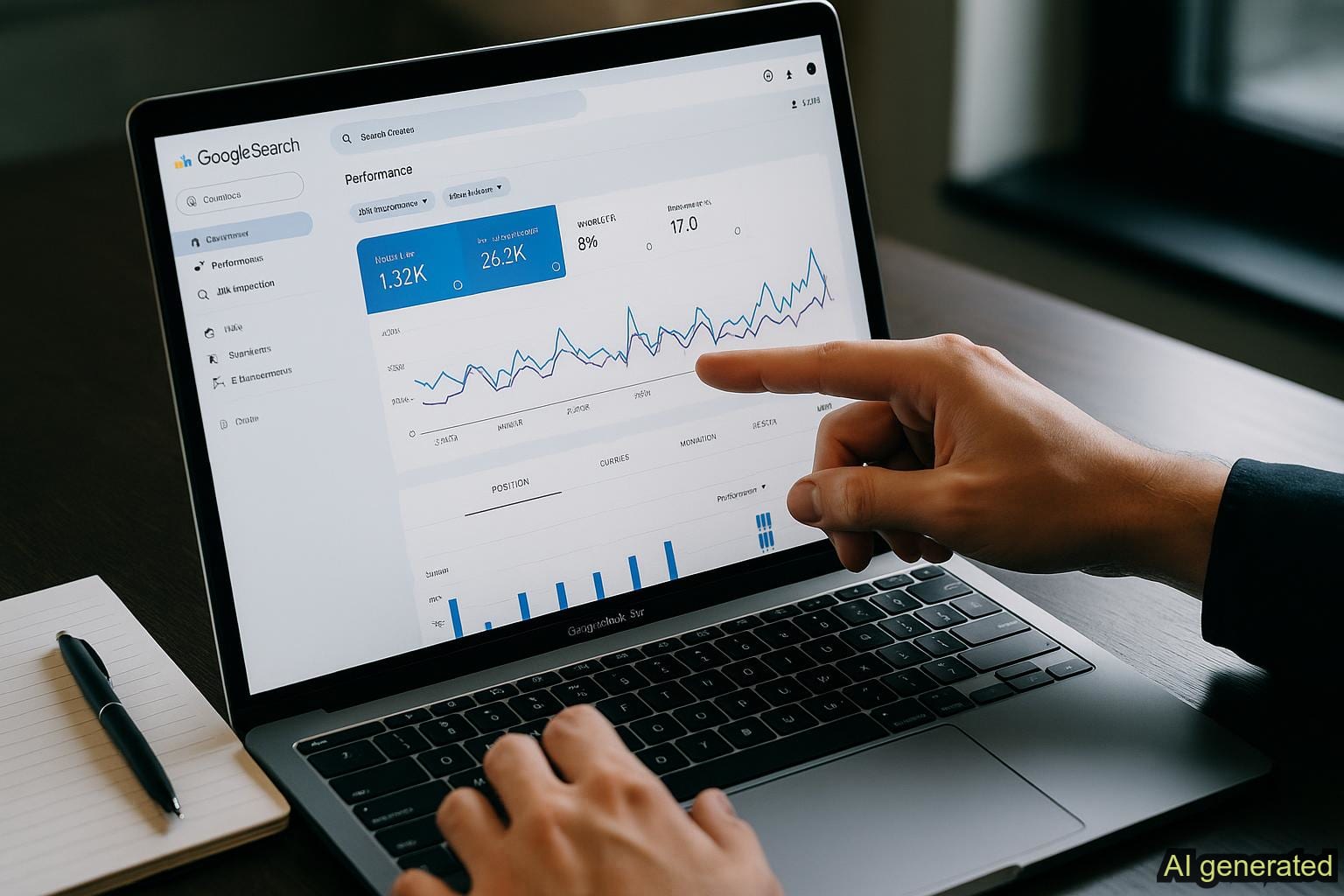
Search Console tells you what Google sees about your website: which keywords trigger your pages in search results, how often your content appears (impressions), how many people click through to your site (clicks), and your average ranking position for each query. This is your primary source for understanding search performance and keyword visibility.
Google Analytics completes the picture by showing what happens after users arrive: engagement time, bounce rate, conversions, and user behavior. When you link these platforms together, you create a unified view of the entire journey from search query to conversion.
Separately, these tools leave you with incomplete insights. Together, they answer the critical questions that drive rankings: Are my titles and meta descriptions compelling enough to earn clicks? Which content is almost ranking but needs optimization? Which keywords have search volume but no traffic yet? For solo founders, this connected data is your competitive edge. It eliminates guesswork and reveals growth opportunities in your existing traffic faster than any manual research.
Setting Up Google Search Console for SEO: Step-by-Step Instructions
Setup anxiety is real, but it doesn't need to be. The process is straightforward when broken into small steps. Let's walk through claiming your property, linking to analytics, and configuring the settings that matter for accurate keyword ranking data.
Linking Your Website and Verifying Ownership
Start by visiting search.google.com/search-console and signing in with your Google account. Click 'Add Property' and choose between domain and URL-prefix options. Select domain if you want data for all versions of your site (www, non-www, http, https). Choose URL-prefix if you're tracking a specific version only. Most solo founders use URL-prefix for simplicity and faster setup.
Next, verify ownership using one of Google's methods: DNS verification (add a TXT record to your domain registrar), HTML file verification (download and upload a file to your site root), Google Analytics verification (if already installed), or Google Tag Manager verification. DNS verification is fastest if your registrar supports it. Follow the prompts, and verification completes within 24 hours, unlocking access to your site's search performance data and keyword tracking capabilities.
Connecting Search Console to Google Analytics
Linking Search Console to Google Analytics unlocks post-click behavior data essential for understanding user intent. Search Console shows impressions and clicks from search results. Analytics shows what users do after clicking. Together, they reveal which keywords drive not just traffic but engaged, conversion-ready visitors.
To link them, go to Search Console settings, click 'Google Analytics property,' and select your Analytics property from the dropdown. Grant the required permissions and confirm. Within a few hours, Search Console data appears in your Analytics reports under Acquisition > Google Search Console. This connection is essential for understanding the full journey from search to conversion and identifying which keywords attract your most valuable traffic.
Configuring Core Settings for Accurate Data Collection
In Search Console settings, set your preferred domain version by choosing between www and non-www. This ensures Google treats one version as canonical and consolidates all ranking data there instead of splitting it across versions. Also confirm your site's target country (if you serve a specific region) and preferred language. These settings ensure your keyword tracking and ranking data remain clean and consolidated for accurate analysis.
Start tracking these metrics now. Log into your Search Console and complete the three setup steps above. Your SEO data awaits.-
Understanding Key SEO Metrics That Drive Rankings
Raw numbers mean nothing without context. The metrics in your Search Console dashboard are the foundation of SEO performance analysis. Let's clarify the key indicators that reveal whether your strategy is working and where to optimize next.
Impressions, Clicks, and Click-Through Rate (CTR) Explained
Think of impressions as the number of times your page appears in search results. Clicks are how many times users actually clicked through to your site. CTR (click-through rate) is the percentage of impressions that resulted in clicks. If your page gets 100 impressions and 5 clicks, your CTR is 5 percent. These three metrics work together to show the full picture of your search visibility and user engagement.
High impressions with low clicks signal that your title tag or meta description isn't compelling enough to earn attention in search results. Low impressions mean you're not ranking for enough keywords or your ranking position is too low to be visible. Healthy CTR, typically 3 to 5 percent for competitive keywords, shows your title and description are working effectively. Improving CTR through better title and meta optimization is often faster than chasing new keywords.
Average Position and Visibility Trends
Average position tells you where your content ranks for a specific keyword in search results. Position 1 through 3 gets most organic clicks and visibility. Positions 4 to 10 still earn traffic but significantly less. Position 11 to 50 represents the hidden goldmine: your content ranks but isn't visible in initial search results. Tracking how your average position changes over weeks and months reveals whether your optimization efforts are working and how your ranking visibility improves over time.
Watch for position trends, not just snapshots. If your average position for a keyword drops from 15 to 8, your optimization worked. If it climbs from 5 to 12, something changed due to algorithm updates, new competitors, or content decay. Position data bridges your analytics and keyword opportunity identification. Keywords at positions 11 to 50 need only minor optimization to reach top 3, making them your fastest ranking wins and highest ROI targets.
Identifying Growth Opportunities from Your Data
Here's where real SEO strategy begins. Your Search Console data is already telling you which keywords to optimize and in what order. You just need to extract the insights hidden in those numbers.
Finding Keywords Ranking 11-50: Your Quick Wins
Open Search Console and navigate to the Performance report. Set your date range to the last 3 months for enough data volume. Click the Position filter and set it to show only keywords where your average position is between 11 and 50. These are your quick wins. Your content already ranks, but it's not visible in top 10 results. Minor optimization bumps these keywords into top 3 territory within 2 to 4 weeks.
Sort by 'Impressions' or 'Clicks' to prioritize high-opportunity keywords. Keywords with higher impressions and clicks offer better ROI. Check the titles and meta descriptions of these pages. Are they compelling? Do they include the target keyword naturally? Do they answer the user's search intent clearly? Small changes to title tags and meta descriptions often unlock ranking improvements for position 11 to 50 keywords, making them the fastest path to measurable organic growth.
Spotting Content Gaps and Untapped Keyword Potential
Look for patterns in your keyword data. If you rank for 'best project management tools' at position 8 but don't rank at all for 'free project management software,' that's a content gap. You're close in one category but missing entirely in a related one. These gaps reveal where your content needs expansion or where new content could rank quickly by targeting related search queries.
Check related keywords where you rank positions 11 to 30. Do they cluster around similar topics? That's a signal that creating or expanding content in that topic could help multiple keywords rank simultaneously. While Search Console shows what's almost working, identifying the full landscape of opportunities you're missing requires deeper keyword discovery and competitive analysis beyond your analytics data alone.
Taking Action: From Data to Optimization Strategy
Data without action is just numbers on a dashboard. Let's turn your Search Console insights into concrete optimization steps that move rankings and drive organic traffic growth.
How to Prioritize Keywords for Optimization
Create a simple priority framework based on effort versus impact. First, identify keywords at positions 11 to 20 with at least 10 monthly searches. These are quick wins requiring minimal effort. Second, target keywords at positions 5 to 10 with higher search volume. These need more optimization but offer bigger payoff in organic traffic. Third, note keyword gaps where similar keywords rank but a related search term doesn't. These represent content expansion opportunities.
For each priority keyword, examine your current page. Is the title compelling and keyword-rich? Does the meta description include the keyword and clearly answer the user's search question? Is the content current and more detailed and useful than ranking competitors? Small improvements here move position 11 to 20 keywords into top 3 within weeks. Tackle quick wins first to build momentum and organic traffic while you plan bigger optimization efforts.
Connecting Your Analytics Insights to Keyword Discovery
Here's what Search Console reveals and what it leaves unanswered: it shows what's ranking, but it doesn't show the full keyword landscape or forecast which new keywords will drive growth. Your analytics reveal user behavior, but they don't predict opportunity. While mastering these fundamentals is essential, they leave a gap. You see your near-misses in positions 11 to 50, but how do you find the keywords you're not ranking for at all? How do you know which new keywords have search volume and low competition waiting for your content?
This is where keyword discovery tools like RankRealizer bridge the gap between analytics and strategy. They transform raw Search Console data into comprehensive keyword strategy by identifying gaps competitors miss. By analyzing your performance data, they reveal which new keywords align with your content strengths and search visibility. RankRealizer connects your analytics insights to untapped ranking opportunities, showing you not just what to optimize but what to create next for sustainable growth. It's the natural evolution after mastering Search Console fundamentals: moving from understanding your data to strategizing around it for exponential organic growth.
Ready to turn your Search Console data into a keyword strategy? Discover how RankRealizer connects your performance data to untapped ranking opportunities. Try it free.-
Conclusion
You've now walked the path from setup through data interpretation to actionable optimization. Search Console and analytics form a connected system revealing exactly where your SEO opportunities live and how to capture them. Real data from your existing traffic is the fastest path to ranking improvements. Keywords at positions 11 to 50 are easier to move than keywords you've never ranked for. Quick wins compound into sustainable organic growth.
Start today: log into Search Console, complete setup, and identify your position 11 to 50 keywords with the highest search volume. Optimize titles, meta descriptions, and content for clarity and relevance. Track changes over the next month using your analytics. As you master these fundamentals and see rankings improve, you'll build the confidence to expand your keyword strategy and scale SEO independently. Mastering these tools is the foundation for sustainable organic growth as a solo founder.
Frequently Asked Questions
How long does it take to see results after optimizing with Search Console data?
For keywords at positions 11 to 50, you often see ranking improvements within 2 to 4 weeks after optimizing title tags, meta descriptions, and content. Position changes can take longer in highly competitive niches with strong competitors. Track progress monthly rather than daily for accurate trending and clearer visibility of your optimization impact.
Why am I getting high impressions but low clicks?
High impressions with low clicks usually indicate weak title tags or meta descriptions that don't appeal to searchers. Users see your page in search results but don't find your snippets compelling enough to click. Rewrite your titles and meta descriptions to be more specific, include your target keyword naturally, and clearly answer the user's search question. Test variations and monitor CTR improvements over time.
Should I optimize for keywords at position 5 or position 20 first?
Start with position 11 to 20 keywords if they have at least 10 monthly searches. They're closer to top 3 positions and require less effort to move into high-traffic spots. Once you've secured those quick wins, tackle position 5 to 10 keywords. This approach builds momentum and quick wins boost confidence while you invest in longer-term optimization efforts.
What's the difference between domain and URL-prefix in Search Console?
Domain tracking includes all versions of your site (www, non-www, http, https) and consolidates all ranking data. URL-prefix tracking tracks one specific version only. Choose domain for simplicity and complete search performance analysis unless you need separate data from multiple distinct versions of your site. Most solo founders use domain for consolidated reporting and easier rank tracking.
How do Search Console and Google Analytics work together?
Search Console shows clicks and impressions from search results. When you link to Analytics, you can see what those users do after arriving: engagement time, pages visited, conversions, bounce rate, and user behavior. This connection reveals whether keywords attract interested visitors or just random traffic. High-CTR keywords that bounce immediately signal audience mismatch. High-engagement keywords signal strong content-keyword alignment and indicate your page is delivering value to searchers.




.png)